How to change IP address using a proxy
Learn practical steps to change your IP address with a proxy, plus tips and caveats for safer browsing.
The internet often reveals your IP address, which can be used to infer location, identity, and usage patterns. If you want to browse with a different IP, a proxy is one of the simplest tools to help you do that. This article walks you through the practical steps to change your IP address using a proxy, with options for different devices and use cases. You’ll learn what proxies do, how to select one, how to configure your browser or device, and important security notes.

What a proxy does and why you might want one
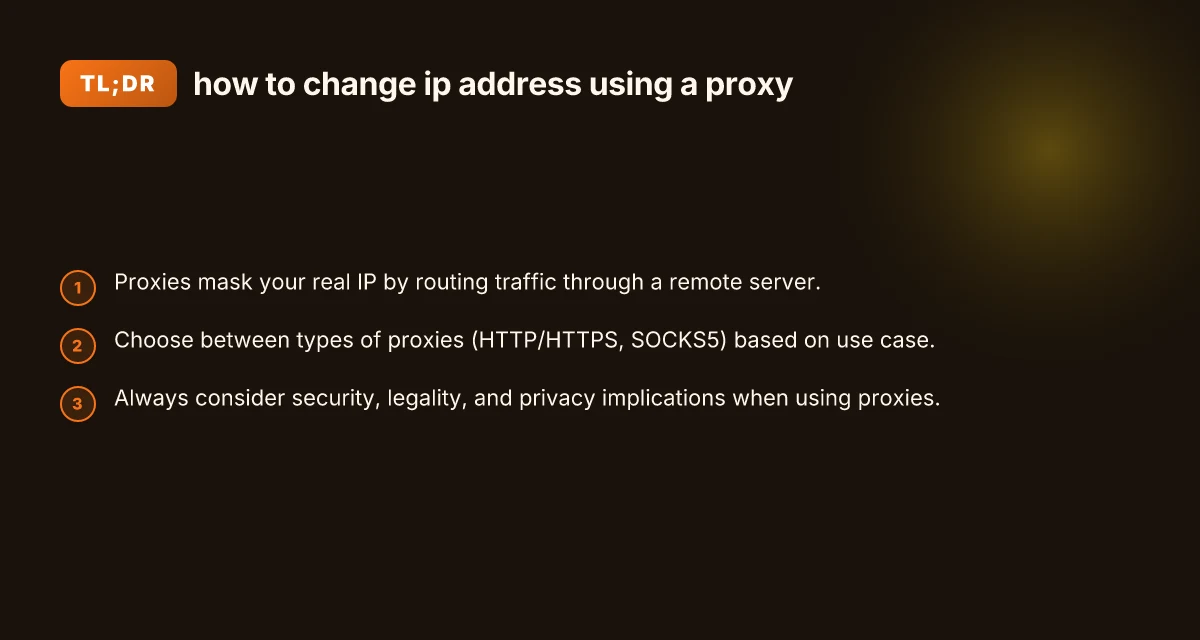
A proxy acts as an intermediary between your device and the websites you visit. Instead of contacting a site directly, your traffic goes to the proxy server, which then requests the site on your behalf and forwards the response back to you. The site sees the proxy’s IP address, not yours.
Why use a proxy to change your IP?
- Access geographically restricted content
- Hide your real IP from certain sites or services
- Test how a site looks from different locations
- Add a layer of privacy in everyday browsing
Keep in mind that a proxy is not a magic shield. Some proxies log traffic, some don’t, and performance can vary. For sensitive activities, consider additional protections such as a VPN or Tor, and always read the proxy’s privacy policy.
Types of proxies and their suitability
Not all proxies are created equal. Here are the common types you’ll encounter, with what they’re best for: How to change IP address for iPhone or iPad
- HTTP/HTTPS proxies: Works with web traffic (browser, many apps). Easy to set up, often fastest for web browsing.
- SOCKS5 proxies: Versatile, supports more protocols (web, chat, torrenting). Better at handling non-HTTP traffic and encryption.
- Transparent proxies: Reveal your original IP. Mainly used for caching or filtering. Not suitable for hiding your IP.
- Anonymous proxies: Hide your IP, but the proxy itself can be detected by some sites.
- Elite/strongly anonymous proxies: Best at concealing that you’re using a proxy. Few sites can detect them, but they can be harder to find and sometimes pricier.
If your goal is general browsing with IP masking, HTTP/HTTPS or SOCKS5 proxies are usually the most practical. If you need apps beyond a browser, SOCKS5 is often the better option.
How to change your IP using a proxy: step-by-step
The exact steps depend on your device and the proxy type, but the general approach is the same.
- Find a proxy service
- Free vs paid: Free proxies are common but less reliable and slower. Paid services tend to offer better speed, stability, and privacy.
- Proxy list vs private proxy: A private proxy is dedicated to you. A public proxy is shared with others and may be slower.
- Check policy: Look for no-logs guarantees and endpoint locations.
- Get the proxy details
- Address: IP address or domain (e.g., proxy.example.com)
- Port: Common ports include 8080, 3128, 8000 for HTTP; 1080 for SOCKS
- Username/password: If the proxy requires authentication
- Protocol: HTTP/HTTPS or SOCKS5
- Configure your browser (example for Chrome)
- Open settings > Privacy and security > Security > Use a proxy server (manual proxy configuration)
- Enter the proxy address and port for HTTP/HTTPS or SOCKS5
- If required, enable authentication with your credentials
- Save and restart the browser
- Configure a system-wide proxy (optional)
- Windows: Settings > Network & Internet > Proxy
- macOS: System Preferences > Network > Advanced > Proxies
- Linux: Varies by distro and desktop environment. Typically network settings or environment variables (http_proxy, https_proxy)
- Test your new IP
- Visit a site like whatismyipaddress.com or iplocation.net
- Confirm that the IP shown matches the proxy’s IP location
- If it doesn’t, recheck settings, or try a different proxy
- For apps and devices that don’t use browser proxy settings
- Some apps use their own proxy options. Look in the app’s network or connection settings
- On mobile, you can set a proxy for Wi-Fi networks in Android or iOS settings
Using a proxy with different browsers and tools
You may want to cover multiple environments. Here are quick notes for common setups:
- Chrome/Edge/Firefox: Generally the same proxy settings via system or browser-specific options. Some browsers support extension-based proxies for per-site control.
- Safari: Uses macOS network proxies. Apply via System Preferences.
- VPN vs proxy: A VPN routes all traffic through a remote server. A proxy typically handles browser or app traffic. VPNs offer stronger encryption and easier global masking. Proxies are lighter-weight and sometimes faster but may log data.
- Command-line tools: curl, wget, or other CLI tools can be forced to use a proxy by environment variables (http_proxy, https_proxy, all_proxy) or tool-specific flags.
A quick comparison table: proxy types at a glance
- HTTP/HTTPS proxy: Simple browser-based use. Suitable for web traffic. Can be less secure if not TLS-enabled. Often faster for basic browsing.
- SOCKS5 proxy: Flexible for many protocols. Better for non-browser apps. Supports UDP. Slightly more complex to configure. Often more secure for mixed traffic.
- Transparent proxy: Does not hide your IP. Mainly for filtering or caching. Not suitable for masking identity.
- Elite/anonymous proxy: Hides proxy usage well. Best at hiding that you’re using a proxy. Availability varies. Price varies.
- VPN: Encrypts all traffic. Higher privacy and security. May affect speed. Subscription required.
Table: Proxy features at a glance Hma provpn software december discount prices
| Proxy type | IP masking | Protocols supported | Encryption | Ideal use case |
|---|---|---|---|---|
| HTTP/HTTPS | Yes | HTTP, HTTPS | Optional with TLS | Web browsing, simple masking |
| SOCKS5 | Yes | Any (TCP, some UDP) | Optional with TLS | Multi-app masking, non-web traffic |
| Transparent | No | Any (depends) | No | Filtering, caching |
| Elite/Anonymous | Yes | HTTP, HTTPS (depending on proxy) | Optional | Strong masking of proxy use |
| VPN | Yes | All | Strong | Full device-wide masking and encryption |
Security, legality, and best practices
- Check the policy: Proxies can log traffic. Read the provider’s privacy policy and terms of service.
- Use trusted providers: Free proxies may inject ads, slow down your connection, or compromise privacy.
- Avoid sensitive transactions on proxies: Banking, passwords, or sensitive data can be risky on questionable proxies.
- Consider end-to-end encryption: Use HTTPS when possible to protect data in transit even when using a proxy.
- Be aware of legality: Some uses of proxies are restricted or illegal in certain jurisdictions or contexts (for example, circumventing geoblocks or access restrictions). Ensure you’re compliant with local laws and the terms of service of sites you’re visiting.
- Test for leaks: Some proxies can leak your real IP through WebRTC or other Web APIs. Disable WebRTC in browsers if needed or use a VPN for stronger protection.
- Keep software updated: Proxies, browsers, and devices should be kept up to date to minimize security vulnerabilities.
Troubleshooting common issues
- Page not loading: The proxy may be down or misconfigured. Double-check address and port, and try a different proxy.
- Slow connection: Public/overloaded proxies slow down traffic. Switch to a private or paid proxy, or use a SOCKS5 proxy that’s known to be faster.
- IP not changing: Some sites cache IPs or use multiple checks. Clear browser caches, disable WebRTC, and ensure you’re connecting to the proxy before loading pages.
- DNS leaks: DNS requests can reveal your location even if the IP is changed. Use proxies that also proxy DNS or enable DNS over HTTPS (DoH) where possible.
- Authentication prompts not accepted: Re-enter credentials, ensure you selected the correct proxy type, and verify the server supports the chosen protocol.
Final recommendation
If your goal is to casually browse with a different IP for privacy or geolocation testing, start with a reputable HTTP/HTTPS proxy or SOCKS5 proxy. For broader protection or all traffic masking, consider pairing a proxy with a reputable VPN for encryption and stronger privacy. Always test for leaks, read the provider’s no-logs policy, and avoid transmitting sensitive information through publicly available proxy services. If you require robust privacy across all apps and services, a high-quality VPN solution may be a better long-term fit than a proxy alone.