Everything you need to know about how to change IP address using VPN
Learn how to change your IP address with a VPN, including steps, considerations, and tips for best results.
A VPN, or virtual private network, is a tool that can change your visible IP address by tunneling your internet traffic through a remote server. When you connect to a VPN, websites and online services see the IP address of the VPN server instead of your real IP. This is useful for privacy, geolocation testing, accessing region-restricted content, and adding an extra layer of security on public Wi‑Fi. Below is a practical guide to changing your IP address with a VPN, from choosing a provider to testing the result and understanding limitations.
How a VPN changes your IP address
What happens behind the scenes
- Your device creates a secure, encrypted tunnel to a VPN server.
- All web traffic is routed through that server, so the exit IP is the VPN’s IP.
- DNS queries can be handled by the VPN, preventing leaks that could reveal your real IP.
Important terms to know
- IP address: a numeric label assigned to your device on a network.
- VPN server: a remote computer that forwards your traffic.
- DNS leak: when your real IP leaks outside the VPN tunnel via DNS requests.
- Kill switch: a feature that blocks internet traffic if the VPN disconnects unexpectedly.
How to choose a VPN provider to change your IP
Criteria to evaluate
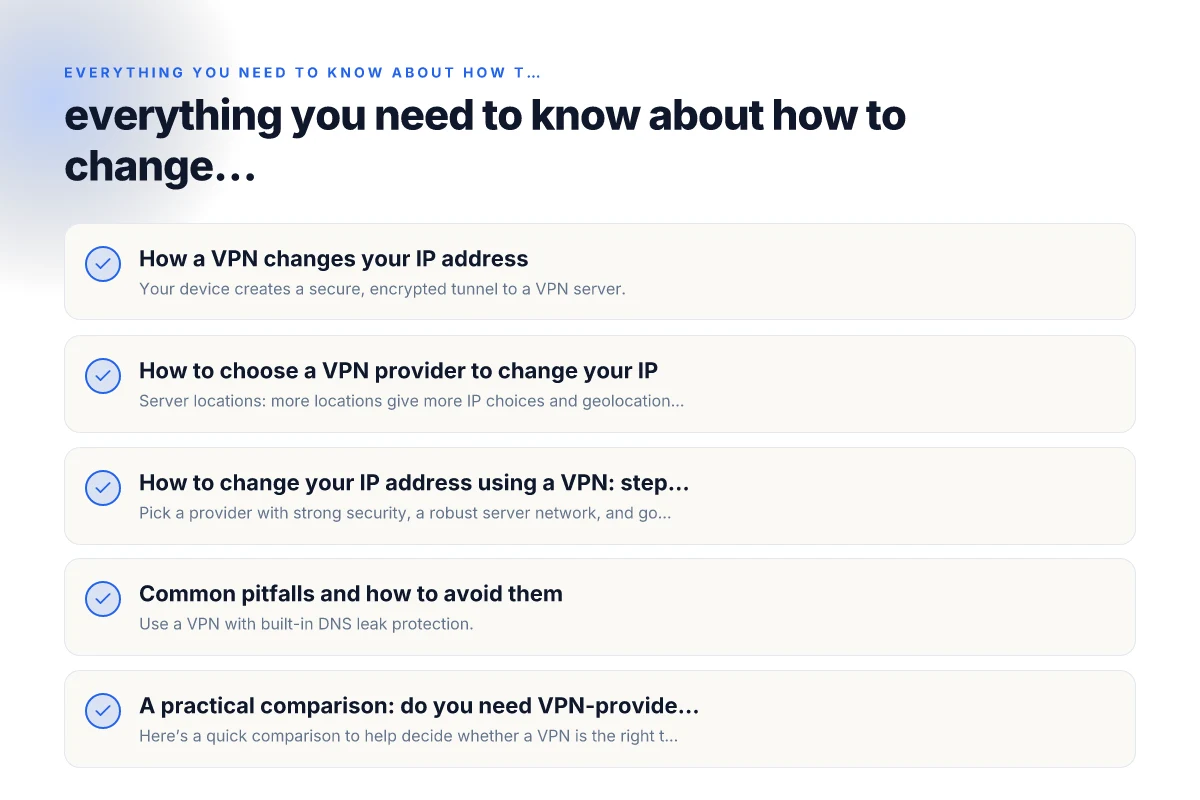
- Server locations: more locations give more IP choices and geolocation options.
- Encryption and protocols: AES-256 with modern protocols (OpenVPN, WireGuard, IKEv2) balance security and speed.
- No-logs policy: promises that your activity and connections aren’t stored.
- Leak protection: built-in DNS, IPv6, and WebRTC leak protection.
- Speed and reliability: fast servers, minimal overhead, good uptime.
- Simultaneous connections: how many devices can be connected at once.
- platform support: apps for Windows, macOS, iOS, Android, Linux, and browser extensions if needed.
- pricing and transparency: clear terms, refunds, and accessible customer support.
Quick decision checklist
- Do you need access to a country-specific library or service?
- Is your primary concern privacy, security on public Wi‑Fi, or avoiding price discrimination?
- Do you require streaming-friendly servers or P2P/torrent-friendly options?
How to change your IP address using a VPN: step-by-step
Step 1: choose the right VPN
- Pick a provider with strong security, a robust server network, and good reviews.
- Check for features like a kill switch, DNS leak protection, and split tunneling if you need selective routing.
Step 2: install the VPN app
- Download the official app from the provider’s site or official store.
- Install on your primary device and, if needed, add apps for other devices.
Step 3: sign in and configure
- Sign in with your account and complete any setup prompts.
- Enable security features: kill switch, DNS leak protection, and IPv6 settings if offered.
- Decide on the protocol (WireGuard for speed, OpenVPN for compatibility, or IKEv2 for mobile stability).
Step 4: connect to a server
- Open the server list and choose a location that suits your goal (e.g., US for US content, a country for testing).
- Click connect and wait for the VPN to establish a tunnel.
Step 5: verify your new IP
- Visit a site like whatismyipaddress.com to confirm the IP shown belongs to the VPN.
- Check for any leaks: run a DNS leak test and WebRTC test if your browser risks exposing your IP.
- If necessary, switch servers or adjust settings to fix leaks or performance issues.
Common pitfalls and how to avoid them
IP leakage and DNS leaks
- Use a VPN with built-in DNS leak protection.
- Enable the kill switch to block traffic if the VPN drops.
Slower speeds
- Choose a server close to your location to reduce latency.
- Use the protocol that offers the best balance for your network (often WireGuard or OpenVPN TCP/UDP).
Not seeing the expected location
- Some services block VPN IPs. Try a different server or a dedicated streaming server.
- Clear browser cache or use incognito mode to avoid cached location data.
Mixed results on mobile devices
- Ensure the VPN has mobile-optimized apps and background data usage is allowed.
- Check battery and performance settings that may terminate background VPN processes.
A practical comparison: do you need VPN-provided IP changes or other options?
Here’s a quick comparison to help decide whether a VPN is the right tool for changing your IP:
| Tool | How it changes IP | Pros | Cons | Ideal use |
|---|---|---|---|---|
| VPN | Routes all traffic through a VPN server; visible IP is the server's | Broad protection, multiple locations, extra security on public networks | Potential speed impact, some sites block VPNs | Privacy, geo-unblocking, secure browsing on public networks |
| Proxy | Routes only specific apps or browsers; often IP is the proxy server | Simple, fast for light use | No encryption by default, leaks possible | Anonymous browsing in a browser or testing location-restricted content quickly |
| Tor | Routes traffic through a volunteer network; exit node IP changes | Strong anonymity, resistant to tracking | Significantly slower, not suitable for streaming or heavy use | Anonymity for browsing with low threat models |
| Smart DNS | Rewrites DNS queries to appear from location; does not change IP for all traffic | Fast for streaming, no encryption overhead | Does not hide IP in all contexts, some DNS leaks possible | Bypassing geo-restrictions for streaming without altering IP security |
How to test that your IP address has changed successfully
- Use multiple IP check services: whatismyipaddress.com, iplocation.net, and dnsleaktest.com.
- Run a WebRTC leak test in your browser since some configurations expose your real IP.
- Verify the location shown matches a VPN server you connected to. If not, re-check the tunnel and leak protections.
- Test on different browsers or devices to ensure consistency across your network.
Security considerations and best practices
- Use strong authentication for your VPN account to prevent unauthorized access.
- Prefer providers with a transparent privacy policy and independent audits if possible.
- Enable a kill switch and DNS leak protection on all devices.
- Keep the VPN app and device OS updated to patch security vulnerabilities.
- Be aware of the laws and terms of service in your jurisdiction and with the services you use.
When to use a VPN and when not to
- Use a VPN when on public Wi‑Fi to reduce risk of eavesdropping and to mask your IP.
- Use a VPN to access content that is region-locked or to test regional behavior for development and QA.
- Do not rely on a VPN to fully anonymize online activity. Combine with good browsing hygiene, strong passwords, and multi-factor authentication.
- If a service explicitly bans VPNs, you may need to disconnect and use the service with caution or look for authorized access methods.
Final recommendation
If your primary goal is to change your IP address reliably and securely, a reputable VPN is the most practical and versatile tool. Look for a provider with a broad server network, strong encryption, a clear no-logs policy, robust leak protection, and responsive support. Set up the kill switch and DNS leak protection from the start, verify the new IP with multiple checks, and regularly test for leaks. For most users, a well-chosen VPN offers the best balance of privacy, accessibility, and performance when changing IP addresses.
| VPN | Obfuscation | From / month | Plan | Free plan | Refund | Alipay | UnionPay | Crypto | Website opens in China | Trustpilot | |
|---|---|---|---|---|---|---|---|---|---|---|---|
 ZoogVPN | Turn on manually Shadow | $2.49/mo | 27 months: $59.99 | Yes | 7 days | ✓ | ✓ | ✓ | ✓ | Official site blocked; our special link opens (4.4 s) | 4.2/5 (195 reviews) |
 NordVPN | Turn on manually Obfuscated Servers / NordWhisper | $3.49/mo | 27 months: $94.23 | No | 30 days | ? | ✗ | ✓ | ✓ | ✗ Blocked | 4.2/5 (51,628 reviews) |
 ExpressVPN | ✓ On by default all servers | $3.00/mo | 28 months: $84 | No | 30 days | ✗ | ✗ | ✓ | ✗ | ✗ Blocked | 4.4/5 (29,706 reviews) |
 Surfshark | ✓ On by default Camouflage, with OpenVPN | See site | See site | No | 30 days | ✗ | ✗ | ✗ | ✓ | ✗ Blocked | 4.3/5 (31,823 reviews) |
 Proton VPN | Turn on manually Stealth, free plan too | $2.99/mo | 12 months: $35.88 | Yes | 30 days | ✗ | ✗ | ✗ | ✓ | ✗ Blocked | 2.1/5 (1,040 reviews) |
 Astrill VPN | Turn on manually StealthVPN / OpenWeb | $12.50/mo | 24 months: $300 | No | See site | ✗ | ✗ | ✗ | ✓ | ✗ Blocked | 1.3/5 (110 reviews) |
 Private Internet Access | Turn on manually Shadowsocks, OpenVPN only | $2.03/mo | 40 months: $81.2 | No | 30 days | ✗ | ✗ | ✗ | ✗ | ✗ Blocked | 4.2/5 (11,033 reviews) |
 CyberGhost | Turn on manually selected servers | $2.19/mo | 28 months: $61.32 | No | 45 days | ✗ | ✗ | ✗ | ✓ | ✗ Blocked | 4.0/5 (24,178 reviews) |
 PureVPN | Turn on manually switch to OpenVPN | $1.69/mo | 60 months: $101.55 | No | 31 days | ? | ? | ✗ | ✓ | ✗ Blocked | 4.4/5 (17,994 reviews) |
 AdGuard VPN | ✓ On by default TrustTunnel | $2.99/mo | 24 months: $71.76 | Yes | 30 days | ✓ | ✗ | ✓ | ✓ | Official site blocked; our special link opens (3.7 s) | 4.3/5 (290 reviews) |
 Mullvad | Turn on manually QUIC / Shadowsocks / LWO | $5.61/mo | €5/mo | No | 14 days | ✗ | ✗ | ✗ | ✓ | ✗ Blocked | 3.2/5 (192 reviews) |
 Windscribe | Turn on manually Stealth / WStunnel | $5.75/mo | 12 months: $69 | Yes | See site | ✗ | ✗ | ✗ | ✓ | ✗ Blocked | 4.7/5 (13,355 reviews) |
 StrongVPN | Turn on manually Scramble, OpenVPN TCP | See site | See site | No | 30 days | ✓ | ✗ | ✗ | ✗ | ✗ Blocked | 4.4/5 (2,695 reviews) |
 LightXtreme 闪连 | Not listed | $7.08/mo | 12 months: $84.99 | Yes | 30 days | ✓ | ✓ | ✓ | ✓ | ✓ Yes (3.5 s) | No page |
Prices checked 2026-11-10 on each vendor's pricing page (cheapest long plan, USD). Check the vendor's checkout for the final price.
Obfuscation checked 2026-11-14 on each vendor's site and help center: "on by default" = nothing to set; "turn on manually" = switch protocol or mode in settings; "not listed" = the vendor describes no obfuscation.
Payment methods checked 2026-11-10 on each vendor's payment pages: all 14 take cards and PayPal; ✗ = not listed, ? = the vendor's own pages disagree.
China access: whether the official website opens from mainland China networks (tests the website only, not the VPN connection). Last checked 2026-11-18 01:02 Beijing time.
Trustpilot score and review count checked 2026-11-10.